AccuRally Manual
Contents
1. Welcome
1.1 What is a TSD rally?
A precision driving event — not a race. The organizer sets legal average speeds over a measured course; your goal is to be exactly on time, everywhere. Checkpoints time you as you pass; lowest total error wins.
1.2 What AccuRally does
AccuRally replaces checkpoint crews with GPS. The RallyMaster places checkpoints by standing on the spot; the Competitor app times each car as it crosses — nothing in the road, nobody with a clipboard. A checkpoint score is simply when you crossed versus when a perfect car would have, in seconds. Your odometer is never part of the score.
1.3 What's optional
Scoring is all you need. Register, drive, get scored — that's a complete rally. The Rally Computer and the Digital Routebook are optional extras: paper routebooks work exactly as they always have, and the Rally Computer can also be used by itself on any rally, including events not scored by AccuRally.
1.4 No cell coverage required
Everything in the car works fully offline. Scores and logs are kept on the device and upload on their own when coverage returns.
2. GPS, Devices & Time
One section for competitors and organizers alike — read it once.
2.1 GPS sources
The phone's own GPS works. External Bluetooth units — Dual XGPS160 and RaceBox Mini — are supported directly on both iPhone and Android and give faster, steadier fixes. The app picks the best connected source automatically (Auto), or you can force one: Internal, Dual, RaceBox.
2.2 Pairing an external GPS
Pair the unit in your phone's Bluetooth settings, then check the GPS panel in the app: it names the source it is using and shows the current accuracy.
📱 Screenshot coming: the GPS source panel showing a connected Dual XGPS160
2.3 Every crossing remembers its device
Each checkpoint record notes which unit produced it — "iOS Internal", "Dual XGPS160", "RaceBox". If a Bluetooth unit dropped out mid-stage, the organizer can see exactly which crossings it produced.
2.4 Accuracy and placement
The accuracy number is the radius the position could be off by — smaller is better; under 5 m is normal with a clear sky view. Mount the phone or GPS unit where it can see the sky: on the dash near the windshield, not in a pocket or footwell. The same applies when a RallyMaster stands on a corner placing a checkpoint.
2.5 Permissions
The app asks for location permission the first time it runs — allow it while using the app. That's the only setup.
2.6 Fake locations don't work
Android apps that fake GPS positions are detected and the run is flagged. Scores ride on real satellite fixes or not at all.
2.7 Official time is satellite time
Scoring runs on GPS time — never the phone's clock. The clock shown in the app is rally time, identical in every car and on the organizer's side, to the tenth. There is no syncing watches at registration, and the clock in your phone's status bar doesn't matter; it can be seconds off. Trust the app's clock.
3. Competitor App — Scoring
The only part every competitor needs.
3.1 Registering
The organizer gives you a 4-digit code. Enter it, pick your car number, enter driver and navigator names and your vehicle, and pick your class from the rally's list. That's registration — you're scored from here on.
📱 Screenshot coming: the registration screen with code, car number, names, class
3.2 Primary and secondary devices
Each car can register two devices: a primary and a secondary. The primary's scores count; where the primary has no record, the secondary's fills in — those scores show an & in the results. A second phone in the glovebox is cheap insurance against a dead battery or a dropped app.
The first device to claim a car's seat keeps it. If a phone dies or is lost, you (or the organizer) can release its seat so a replacement can register.
3.3 Before the stage
Arm the stage when the organizer says the rally is live. Check the GPS panel: a named source and good accuracy. Then drive — there is nothing to press at checkpoints.
3.4 Crossing a checkpoint
The app announces your result as you cross — "2.0 late" — and logs it. Scores display as E early / L late in seconds: "E 3.2", "L 9.5", or "0.0" for perfect. Checkpoint locations are secret; you find out where one was when it scores you.
📱 Screenshot coming: the in-car scoring screen after a crossing
3.5 Passage controls and stage start/end
Not every checkpoint is scored. Passage controls simply record that you came through; stage start and end mark the timing bounds. Crossing the stage start also resets any time allowance back to zero.
3.6 Time Allowances
Delayed by traffic, a train, a stuck gate? Press the TA button. The first press takes a 30-second allowance, the next 60 seconds, and your running total shows under the button. A TA shifts your perfect time at every checkpoint ahead of you — take it before the checkpoints you need it for. It resets when you cross the next stage start. If you pressed it in error, tell the organizer — they can void it.
📱 Screenshot coming: the TA button with the running Total TA
3.7 "OFF COURSE"
If the app announces OFF COURSE, you've crossed a marker the organizer placed off the correct route. It doesn't score — it tells you (and the results) that you left the course. Find your way back to the route.
3.8 Your scores during the day
The app shows each checkpoint score and stage totals as you go. Treat in-car numbers as provisional: official results are computed by the rally from the raw records, so if the organizer corrects a control mid-day your in-car number may differ — right in the results, even when it looked wrong in the car.
3.9 Share Current Position (optional)
Off by default. If you turn it on, the organizer's map shows roughly where you are — one position about every minute, most recent only, visible to the organizer only. Useful for your own safety on remote events. Leave it off and nothing is shared; scoring is unaffected either way.
3.10 Unregister
Done with the event, or moving the app to another car? Unregister releases your seat. Scores already uploaded stay with the rally.
4. Competitor App — Rally Computer (optional)
Skip this whole section if you navigate by clock and odometer — scoring does not use any of it. And the reverse is also true: the Rally Computer works by itself on any rally, scored by AccuRally or not.
4.1 What it is
A rally odometer and average-speed clock: big ODO A readout with a second trip (ODO B), your current CAST, and an early/late indicator against the instructed schedule.
📱 Screenshot coming: the Rally Computer face — odometer, CAST, early/late
4.2 Check your class rules first
Most clubs run an Equipped (or Unlimited) class where computers are welcome and an SOP class where they aren't. Using the Rally Computer usually makes you Equipped — check the event's rules before you arm it.
4.3 Odometer inputs and factors
The odometer counts distance from one of three inputs: Current GPS (the same source scoring uses — this is the normal choice), Pulse/VSS (a wheel sensor, for hardware to come), or Sim (a simulator for practicing at the kitchen table). The factor scales raw distance into official mileage; the effective factor is always visible, and it adjusts when you calibrate. FWD / PARK / REV set which way distance counts — PARK freezes the odo while you sit.
4.4 Calibrating on the odo check
Every rally opens with an odometer check — a measured distance to calibrate against. Zero at the start, drive it, and set the known mileage at the end marker; the factor adjusts so your odo reads official miles from then on.
4.5 Staying on official mileage
At any instruction with a known mileage, SET ODO! types the official mileage straight in, and TWEEK → ODO snaps the odo to the selected instruction's mileage as you pass its landmark. Small, frequent corrections beat one big one.
4.6 CASTs and pauses
Enter the value and hit CAST! at the action point to change your average speed; enter seconds and take a pause the same way. The schedule math follows the instructions exactly — change speed at the point the routebook says, not before.
4.7 Time Allowances and the computer
One press does both jobs: taking a TA for scoring also inserts the same pause into the computer's schedule, so your early/late indicator stays honest about your new perfect time.
4.8 Monte Carlo sections (RTZs)
Some rallies include a section with a distance and an arrival time but no average speed — a Monte Carlo section; RASC calls it a Rally Transit Zone. You may run early or late inside it; what counts is hitting the end on time. The routebook carries this as a SETTIME: the time the schedule must read at that mileage.
When the digital routebook has a SETTIME where no average speed is in effect, AccuRally works out the speed that arrives exactly on the in-time and puts it in as a normal CAST at the start of the span — visible in the instruction list as "CAST derived from SETTIME", deletable like any instruction if you'd rather pace yourself. Pauses inside the section are accounted for automatically. From there the computer paces the section like any other: run your own game inside, arrive on a zero.
5. Competitor App — Digital Routebook (optional)
Paper routebooks work as they always have. The digital routebook is a convenience, not a requirement.
5.1 Two ways to get instructions in
You can type the numbered route instructions in yourself from the paper routebook — mileage, action, CAST, pause — and the Rally Computer runs against them. Or, when the organizer publishes a digital routebook, the app downloads the whole thing: every instruction, mileage and speed exactly as the organizer wrote them, nothing to type. Either way the computer behaves the same; the download just saves the typing (and the typos).
5.2 Following along
Instructions list in order with their official mileages; the current one is highlighted, and completing it advances to the next. Tulip diagrams show at the instruction where the organizer drew them.
📱 Screenshot coming: the instruction list with a tulip
5.3 Units
The rally runs in one unit — miles or kilometers, the organizer's choice. A published routebook can carry a second column with converted mileages and CASTs for crews whose equipment thinks in the other unit.
6. RallyMaster — Scoring
Start here: a complete, scored rally needs nothing beyond this section. The console runs in a browser at accurally.io/rm; checkpoint placement happens in the RallyMaster phone app, in the field.
6.1 Create the rally
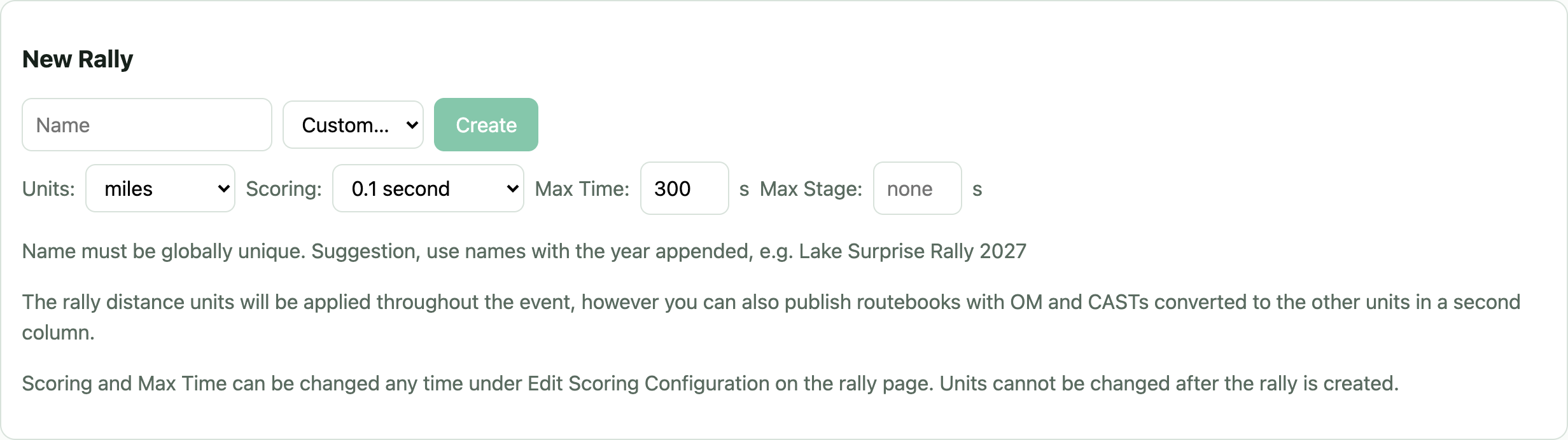
A name and a preset. The preset applies a club's published scoring rules in one click — units, Scoring Precision, Max Time, stage caps — for RASC, NWRC, RallyBC and SCCA, or pick Custom… to set everything yourself. Units are the one setting fixed at creation; everything else can change later.
6.2 Scoring Configuration
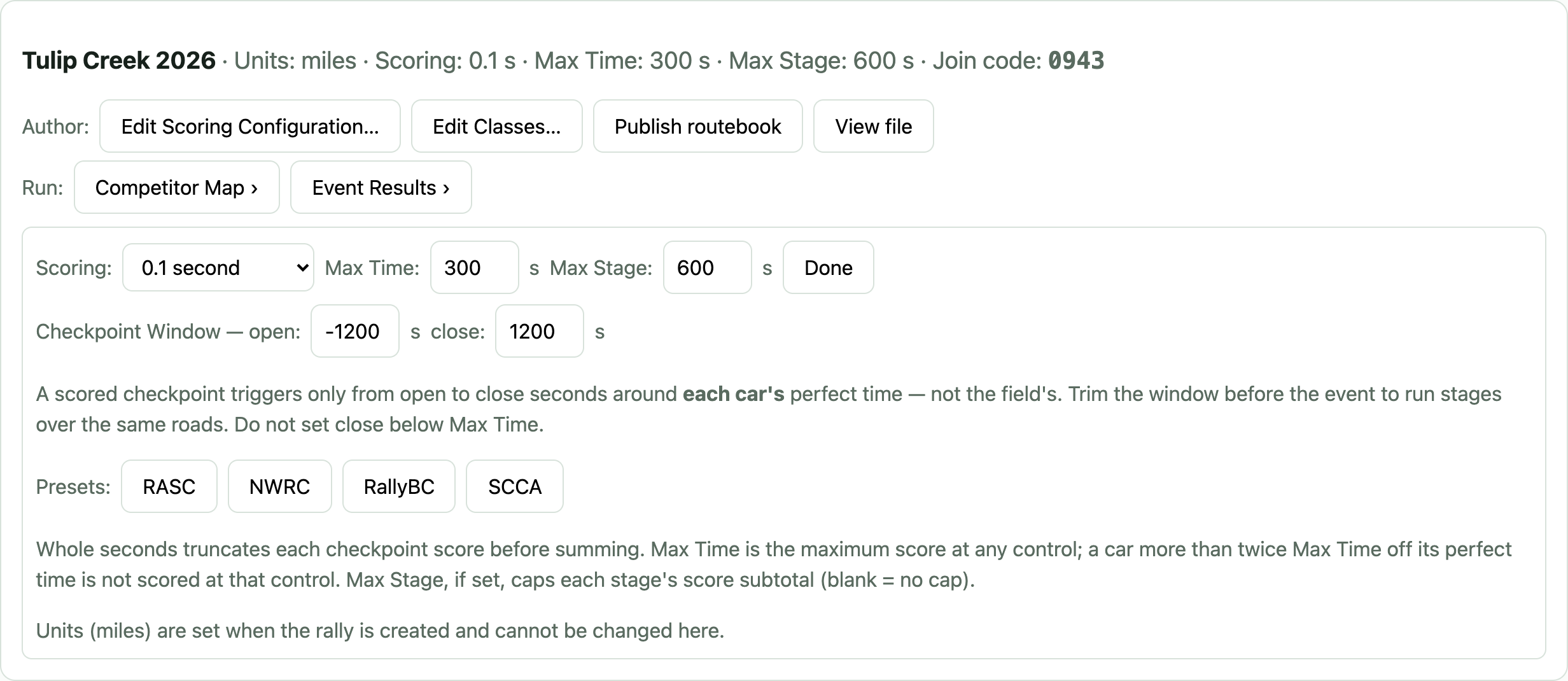
Behind Edit Scoring Configuration…: Scoring Precision (seconds or tenths of seconds), Max Time (the worst score at any control), Max Stage (optional cap on a stage's total), and the Checkpoint Window — a scored checkpoint triggers only from its open to close seconds around each car's perfect time, not the field's. The window is what lets stages share the same roads; trim it before the event if two stages run close in time. Don't set close below Max Time. The club preset buttons here re-apply a club's numbers any time.
6.3 Days, stages, out-times
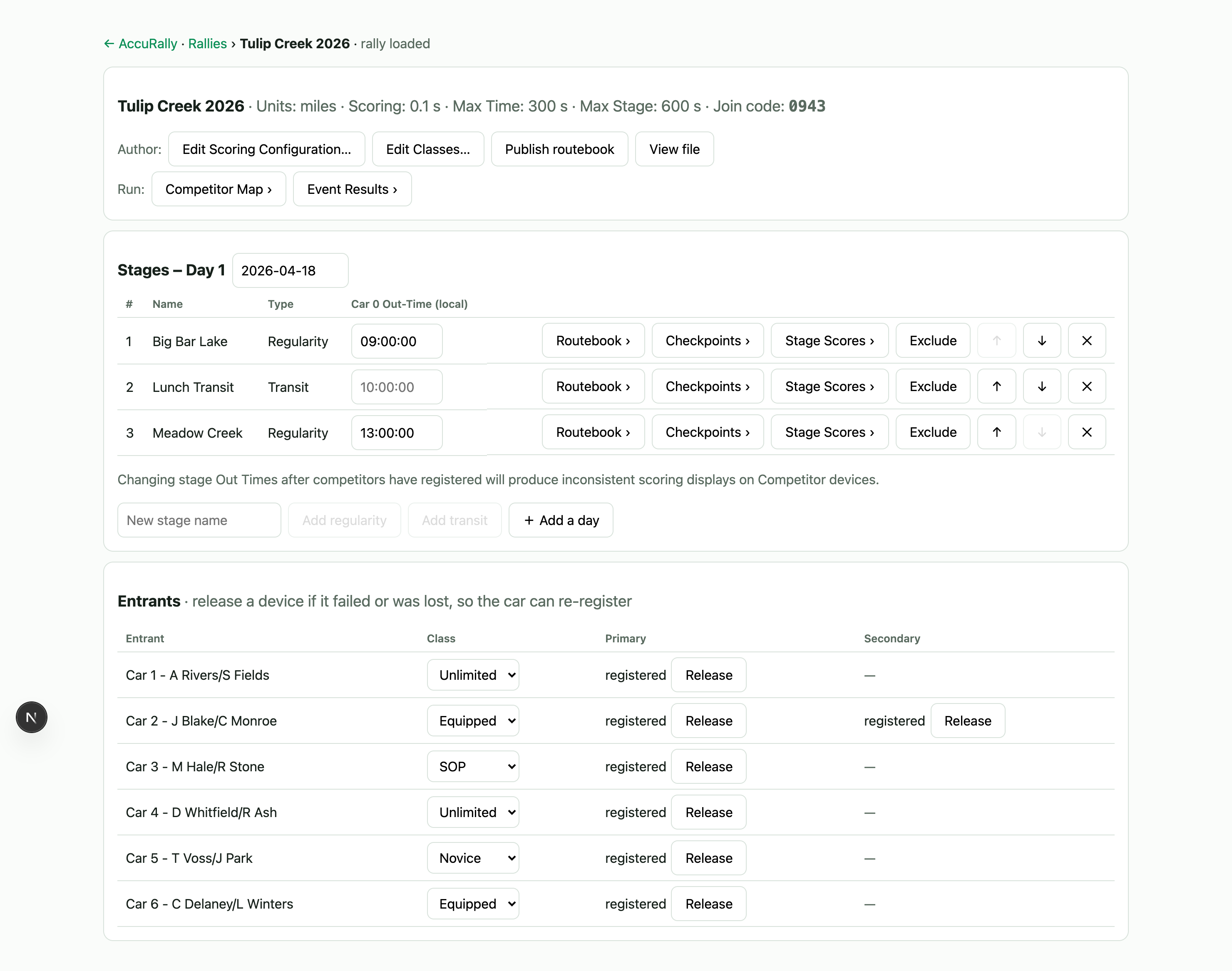
Add stages (regularity or transit) and days; set each stage's Car 0 out-time. Every car's schedule is its number in minutes behind Car 0. Change out-times before cars register. After devices are armed, an out-time change makes in-car displays disagree with official results for that stage — the results stay right, but crews will see wrong numbers until the day is rescored around them. If it happens, tell crews: "your device will show wrong scores this stage; the posted results will be correct."
6.4 Placing checkpoints
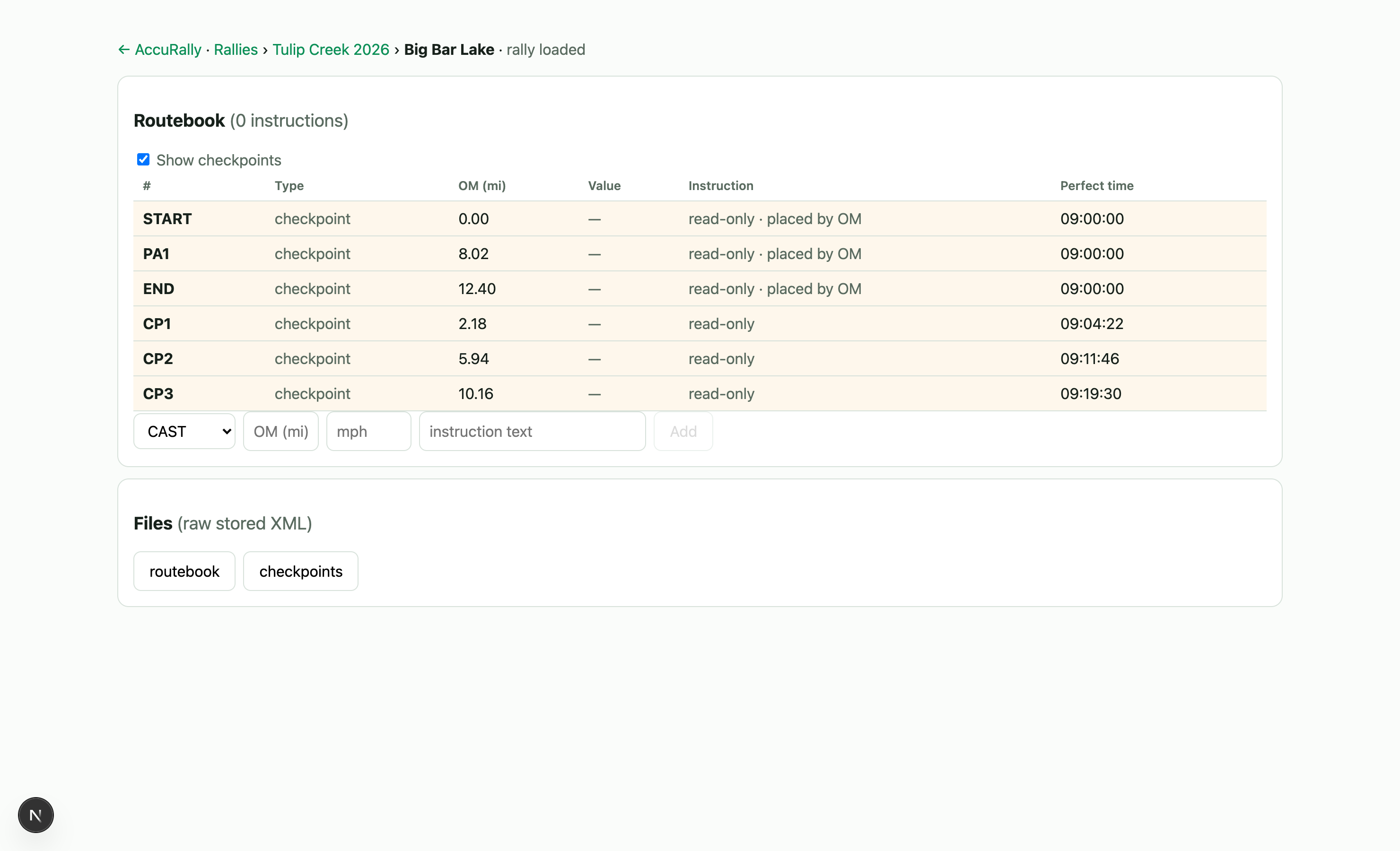
Checkpoints are placed from the RallyMaster phone app, standing at the spot — no cell signal needed; stages and checkpoints created in the field upload when coverage returns. Kinds: stage start (one per stage; also resets TAs), scored (has an expected time; this is what scores), passage (records the pass, no score), stage end, and off-course (announces OFF COURSE to a car that strays onto it). Expected times are durations from the stage start — enter them here in the console or let the routebook compute them. A heading gate (auto-captured, ±45°) keeps a checkpoint from firing on traffic crossing the other way. Each checkpoint can carry an optional note — a physical description like “2nd green post after mailbox” — entered when placing it or later here in the console.
6.5 Classes
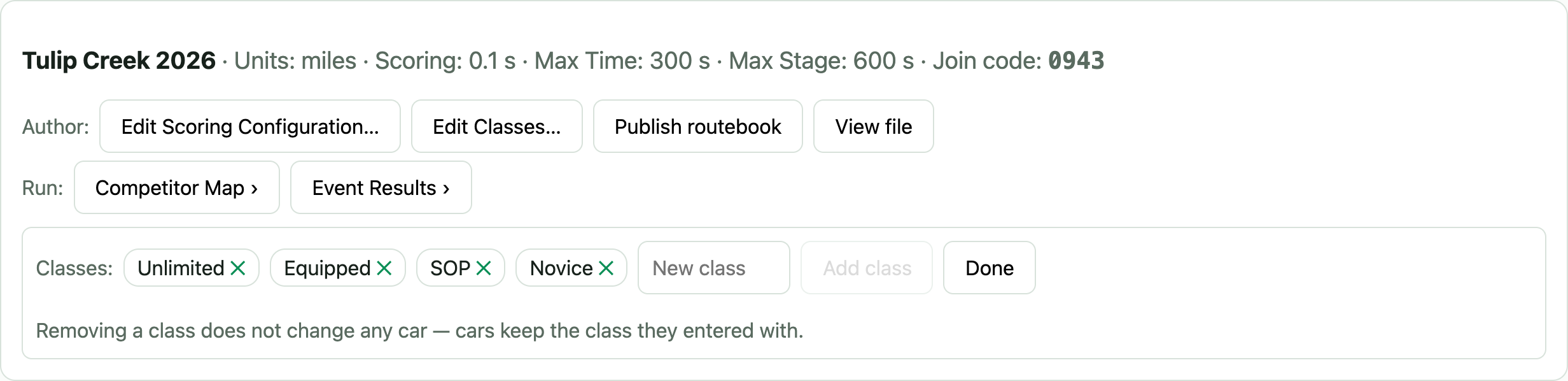
Every rally starts with Unlimited / Equipped / SOP; edit the list behind Edit Classes…. Competitors pick from this list at registration — no free text, no misspelled classes fragmenting your results. Removing a class never changes any car; correct a car's class any time in the Entrants list.
6.6 The join code and the roster
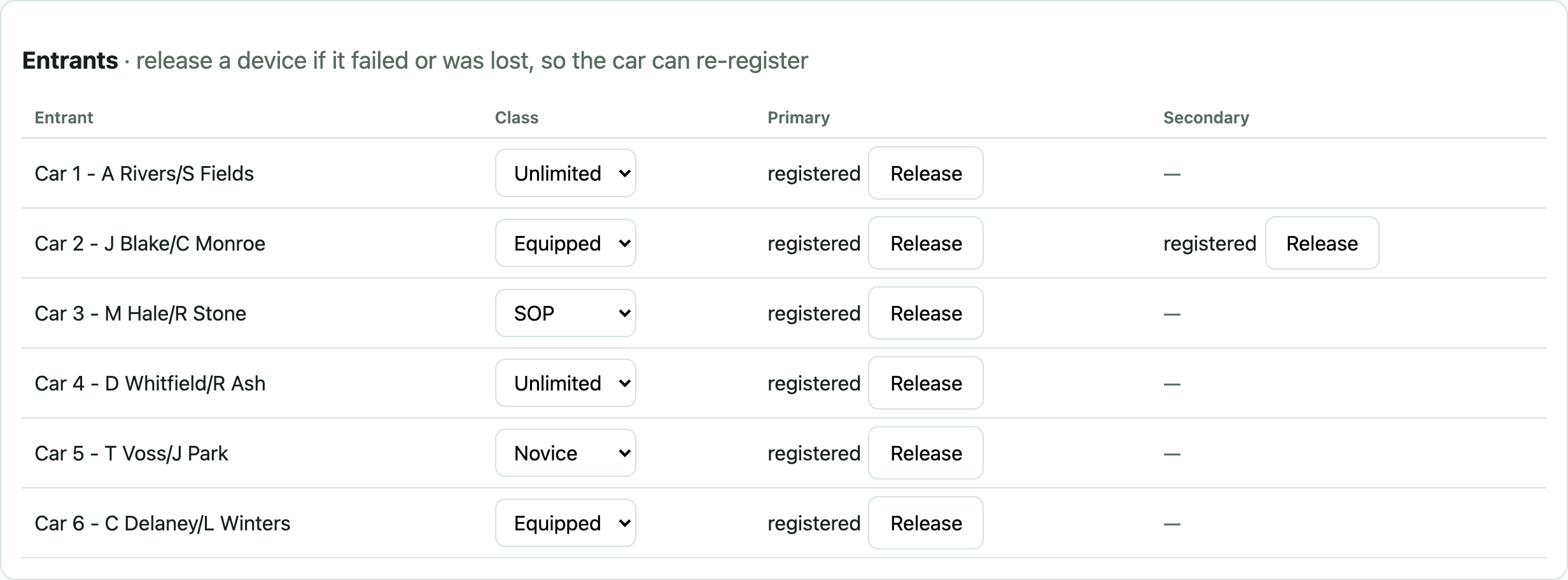
Hand competitors the 4-digit join code. Each car registers a primary device (names, vehicle, class come in with it) and optionally a secondary. The Entrants list shows who holds which seat; Release frees a dead phone's seat so the crew can re-register a replacement.
6.7 Day of — the Competitor Map
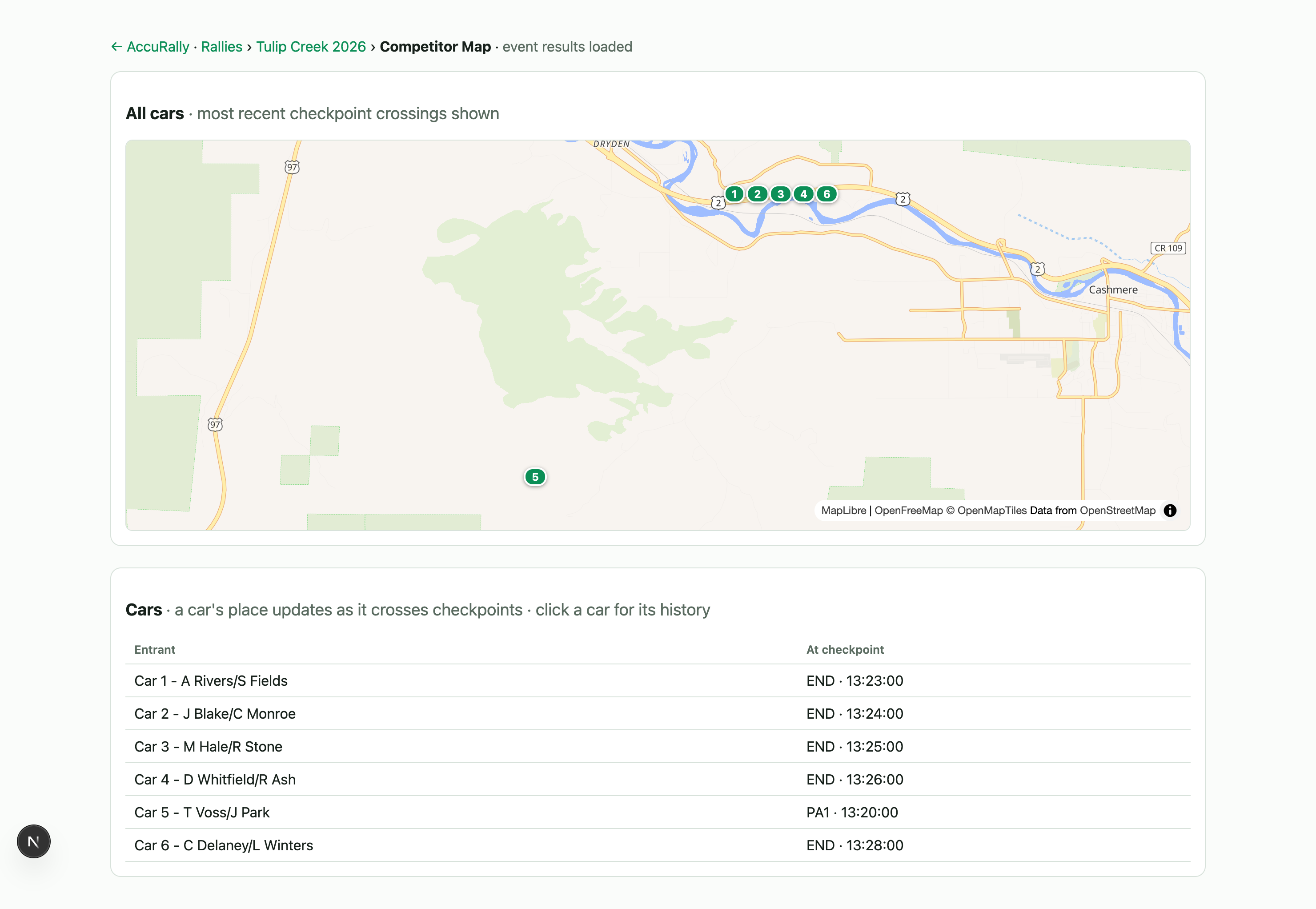
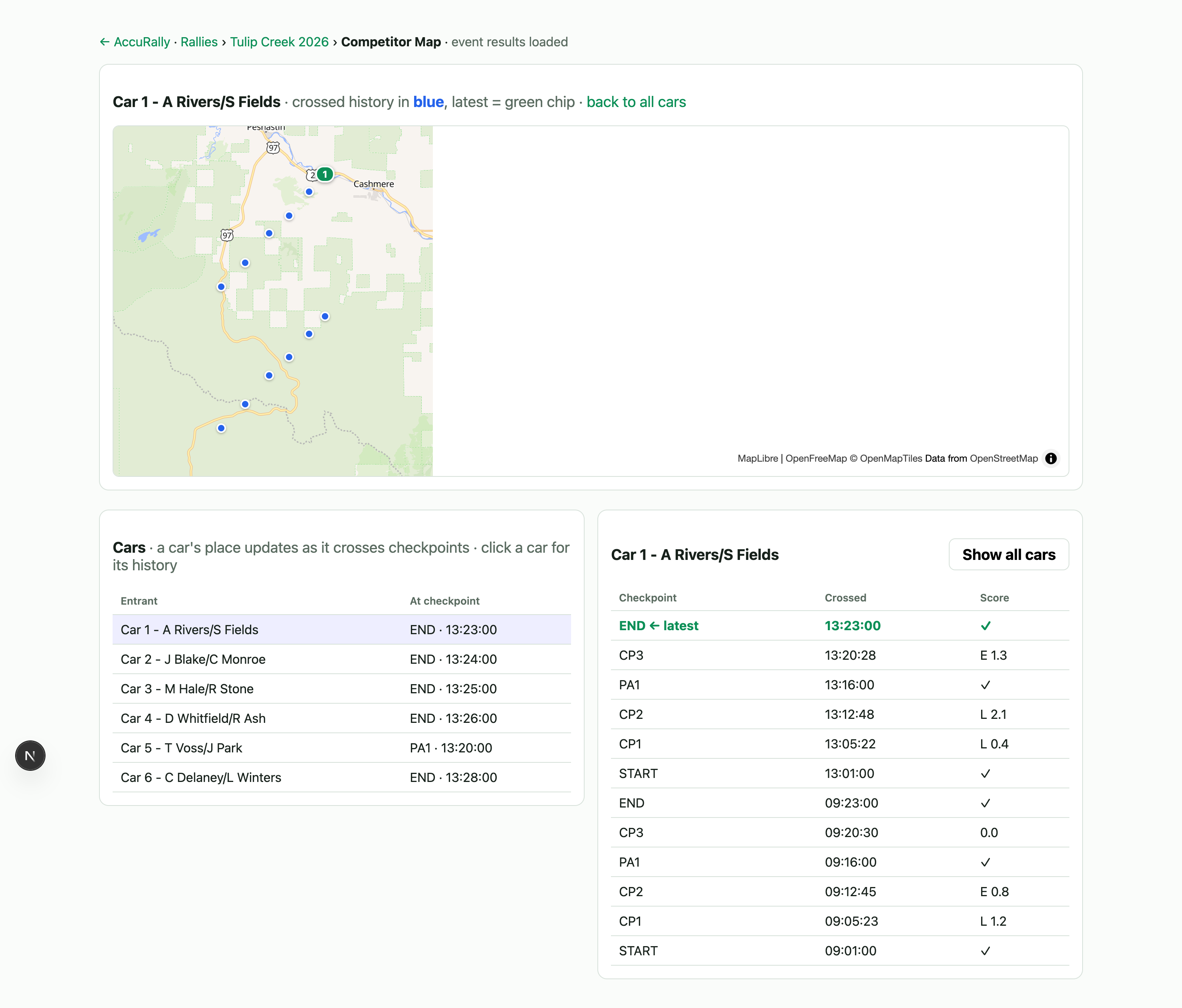
Every car appears at the most recent checkpoint it crossed, updating as crossings upload. Click a car for its full history — crossed checkpoints in blue, latest in green. Cars that turned on Share Current Position also show a live position between checkpoints; everyone else is exactly as private as their crossings.
6.8 Stage Scores — the working view
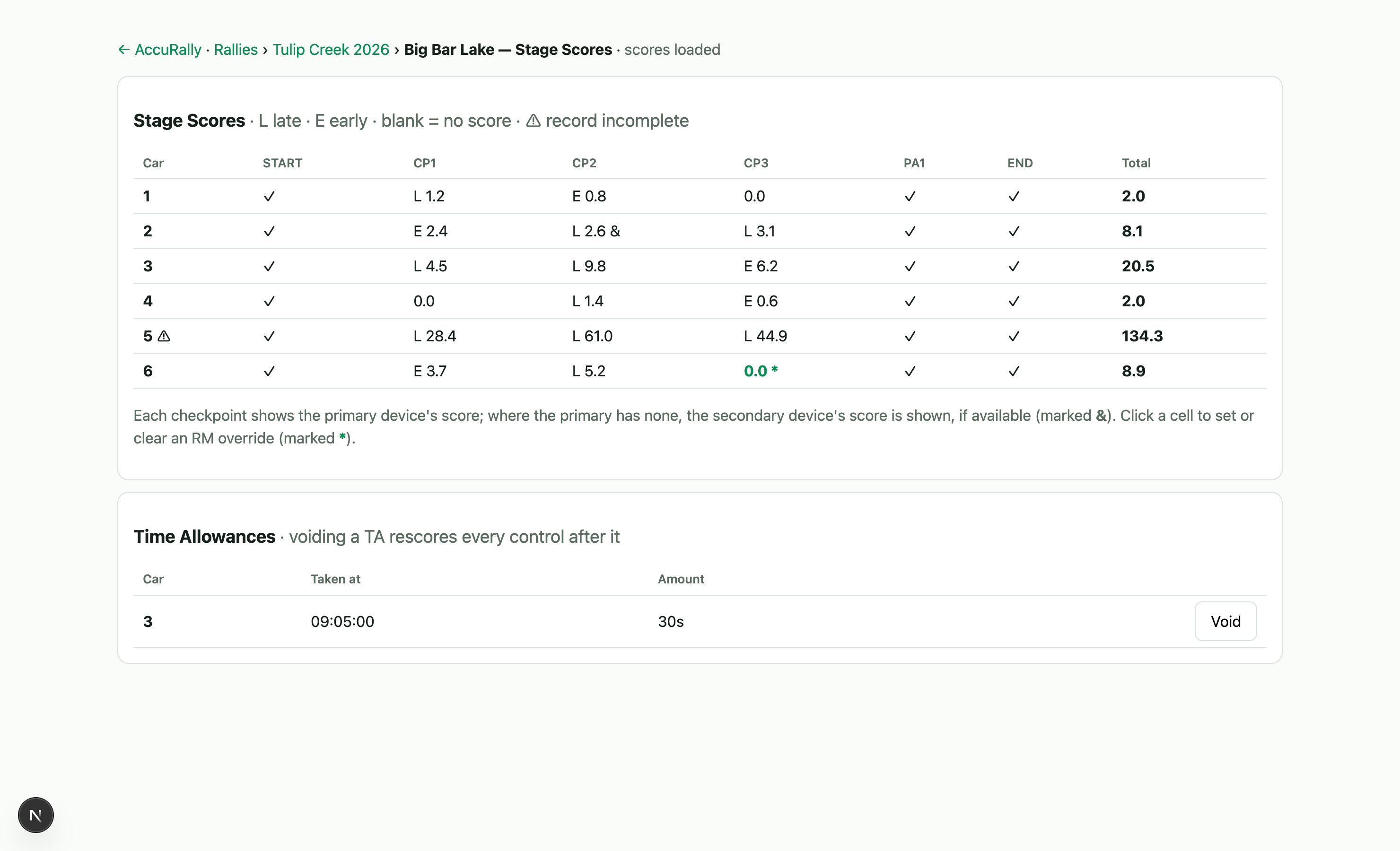
Cars down, checkpoints across, for one stage. A blank cell means no record yet — nothing more; store-and-forward means records land when coverage lets them. & marks a score that came from the car's secondary device. * marks an override. Click any cell to set or clear an override.
6.9 Fixing things
Everything is reversible and on the record:
- Override a score — click the cell, enter the score and a reason (required). The measured value is preserved alongside.
- Score a missing crossing — an override on an empty cell, for when you know what happened.
- Void a TA — a competitor pressed it in error; every later control rescores automatically.
- Exclude a checkpoint (placed wrong) or a whole stage — scores still display, totals skip them, Include restores.
- Correct names, vehicle, class in the Entrants list; Release a lost device.
Official scores are always recomputed from the raw records against the current rally definition — fixing an expected time or out-time is the rescore; there is no "recalculate" button to forget.
6.10 Event Results — the final view
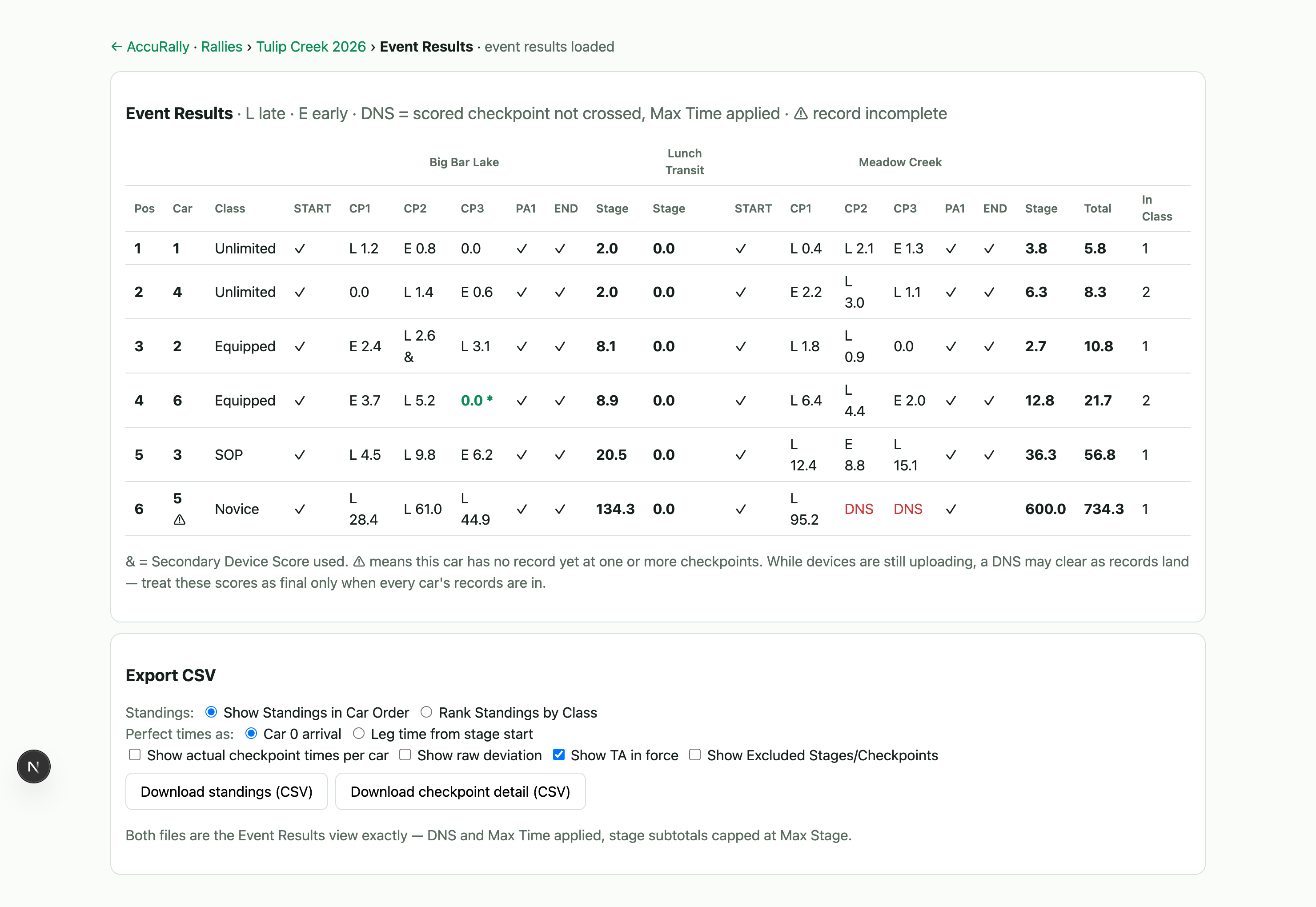
The whole event: every checkpoint, stage subtotals, totals, and standings — overall and in class, lowest total first, most zeros breaking ties. Here (and only here) a scored checkpoint with no crossing shows DNS and counts Max Time, and stage subtotals cap at Max Stage. Nothing is written anywhere — it's a way of reading the same records, so a late-uploading car's DNS clears the moment its records land. The ⚠ mark means a car still has gaps; treat results as final when every car's records are in.
6.11 Posting results
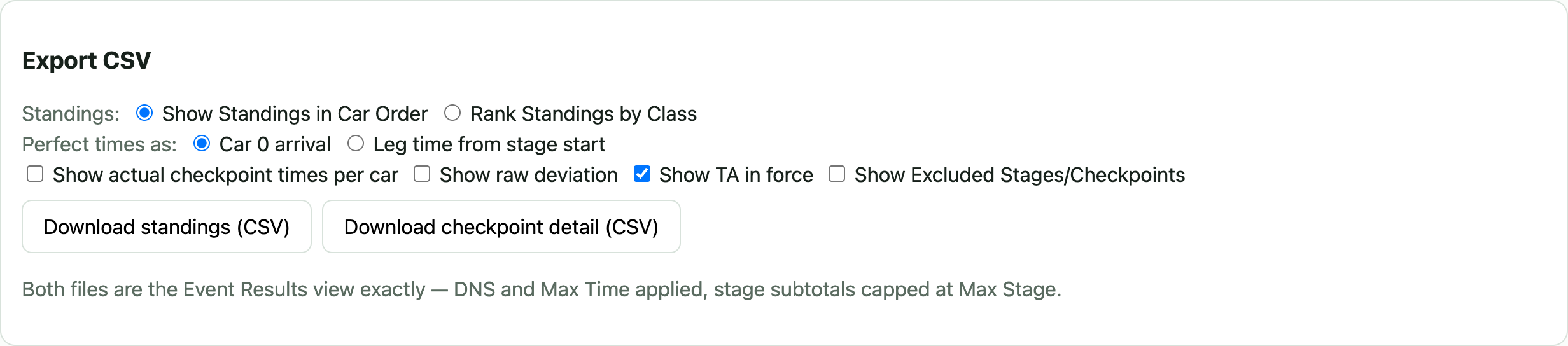
Two spreadsheet files, downloaded from Event Results, both exactly matching the page: standings (one row per car — positions, crew, vehicle, class, stage and day subtotals, total, zeros; in car order or grouped and ranked by class) and checkpoint detail (one row per car per checkpoint — official mileage, perfect times as Car 0 arrival or leg time, optional crossing times and raw deviations, TAs in force, override reasons). The & key line rides at the bottom of each file.
6.12 After the event
Archive the rally to lock it. Every record, override and reason stays readable — results you can defend at the protest table years later.
7. RallyMaster — Routebook
For organizers publishing digitally. A paper-only event skips this section entirely.
7.1 Writing instructions
Each stage carries numbered route instructions: official mileage, the action, and any CAST or pause. Pauses are entered in seconds, the same as in the car. Expected times for scored checkpoints can be computed from the instructions' speeds and mileages — the same math the competitor's computer runs. The time shown against an instruction is when you reach it.
For a Monte Carlo section (an RTZ), add a SETTIME — the in-time at the section-end mileage. Where no average speed is in effect, the editor inserts the pacing CAST for you, as a normal visible instruction; the same happens when importing a PDF routebook. If the in-time can't be met from the current schedule, nothing is inserted.
7.2 Tulips
Attach a tulip diagram to any instruction — drawn once, rendered identically in the console and in every car.
7.3 Publishing
The routebook is invisible to competitors until you publish it; unpublish pulls it back. Publishing the routebook does not reveal checkpoint locations — those stay secret regardless.
7.4 The second-unit column
A rally runs in one unit, but the published routebook can include converted mileages and CASTs in the other unit as a second column.
Questions the manual doesn't answer yet? It grows with every event — tell us what was missing.